How to Fix Laptop Screen Flickering: 7 Quick Solutions (2026 Guide)
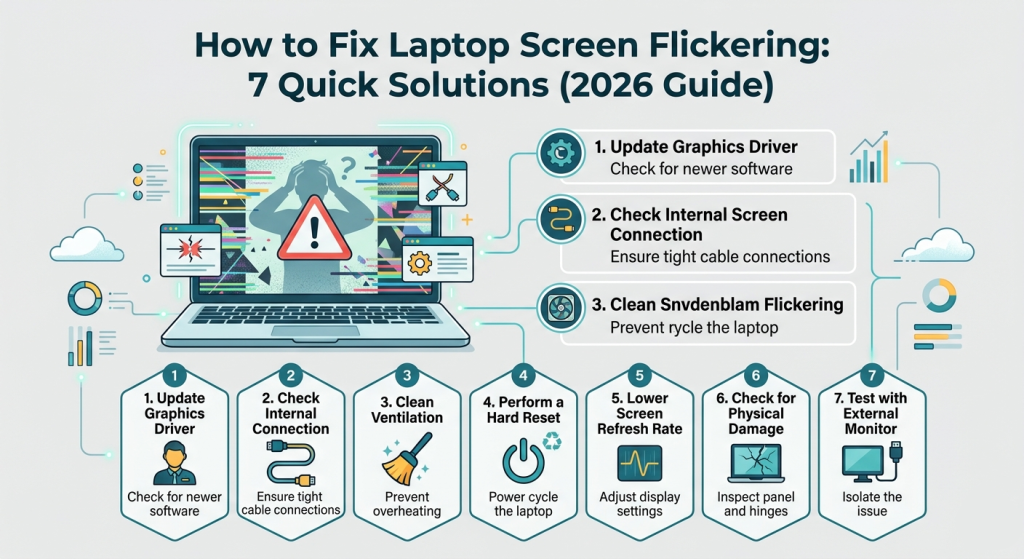
Step 0: The Task Manager Test
Before trying the fixes, press Ctrl + Shift + Esc.
• If Task Manager flickers, you likely have a hardware issue or a faulty display driver.
• If Task Manager does NOT flicker while the rest of the screen does, an incompatible app is causing the trouble.
01. Update or Roll Back Display Drivers
In 2026, most laptops use a "Hybrid Graphics" setup (Intel/AMD integrated chips paired with an NVIDIA/AMD dedicated GPU). If these two aren't communicating correctly, flickering ensues.
- Open Device Manager
- Expand Display Adapters
- Right-click your GPU > Update Driver
Pro Tip: The Rollback
Did the flickering start right after a Windows update? Select Properties > Driver > Roll Back Driver to return to a stable version.
02. Adjust the Refresh Rate
Modern laptop screens often support variable refresh rates (60Hz, 120Hz, or 144Hz). If the rate is set to something the monitor can't handle perfectly, you'll see a steady rhythmic flicker.
- Go to Settings > System > Display.
- Scroll down to Advanced Display.
- Under "Choose a refresh rate," try switching from 120Hz to 60Hz (or vice versa).
03. Uninstall Incompatible Applications
Three types of apps are notorious for causing screen jitters in 2026: Antivirus software, Screen Recording tools, and Third-party UI customizers.
Check Logs
Check Event Viewer under 'Windows Logs > Application' to see if an app is crashing repeatedly in the background.
Clean Boot
Perform a 'Clean Boot' to start Windows with only essential drivers. If the flicker stops, it's definitely an app.
Safe Mode
Booting into Safe Mode disables non-core software, isolating the issue further.
04. Disable Hardware Acceleration & Power Savings
Browsers and apps like Discord use "Hardware Acceleration" to offload work to the GPU. Sometimes, this causes the screen to black out or flicker during heavy web browsing.
The Fix:
- • In Chrome/Edge: Settings > System > Toggle off "Use hardware acceleration when available."
- • Windows Power Plan: Go to Control Panel > Power Options > Change plan settings > Advanced settings. Disable "Link State Power Management" under PCI Express.
05. The "Lid Flex" Test (Hardware)
If your flickering changes when you move the laptop lid, you have a loose eDP cable. This is the thin ribbon cable that connects the motherboard to the screen through the hinge.
"Repeatedly opening and closing a laptop can eventually fray or loosen the internal display connector."
The Fix:
This requires opening the laptop or professional repair. Try applying light pressure to the bezel (at your own risk) to see if it stabilizes.
06. Check for External Interference
It sounds like science fiction, but external factors can cause display distortion. In 2026, high-powered wireless chargers and unshielded speakers are common culprits.
Magnetic Fields
Check if your phone or a magnetic tablet case is resting on the laptop's palm rest. Some laptops use magnets to detect when the lid is closed.
Dirty Power
If the flickering only happens while charging, your power brick might be failing or the outlet might have "noisy" current.
07. Update BIOS/UEFI
If the flicker happens before Windows even loads (on the manufacturer logo screen), the issue is at the firmware level. A BIOS update can recalibrate how the motherboard handles power to the display panel.
Proceed with Caution
Visit your manufacturer's support site (Dell, HP, Lenovo, etc.), enter your Serial Number, and look for "BIOS/Firmware." Do not turn off your laptop during a BIOS update.
Symptom vs. Likely Cause
| The Symptom | The Most Likely Culprit |
|---|---|
| Flickers only when moving the screen | Loose Hardware Ribbon Cable |
| Rhythmic "blinking" every 2 seconds | Refresh Rate Incompatibility |
| Flickers only in Chrome or YouTube | Hardware Acceleration Settings |
| Random bright lines across the screen | Failing GPU or Drivers |
You might also like
Popular Articles

How to Start an LLC - Step-by-Step Guide.

Top 5 Business Credit Cards for Startups with No Credit History

How to Price Your Indie Game for Maximum Profit (Steam vs Itch.io vs Epic)

How to sell game assets on Unity Store
Best Game Engines for Beginners: Unity vs Godot vs Unreal Compared